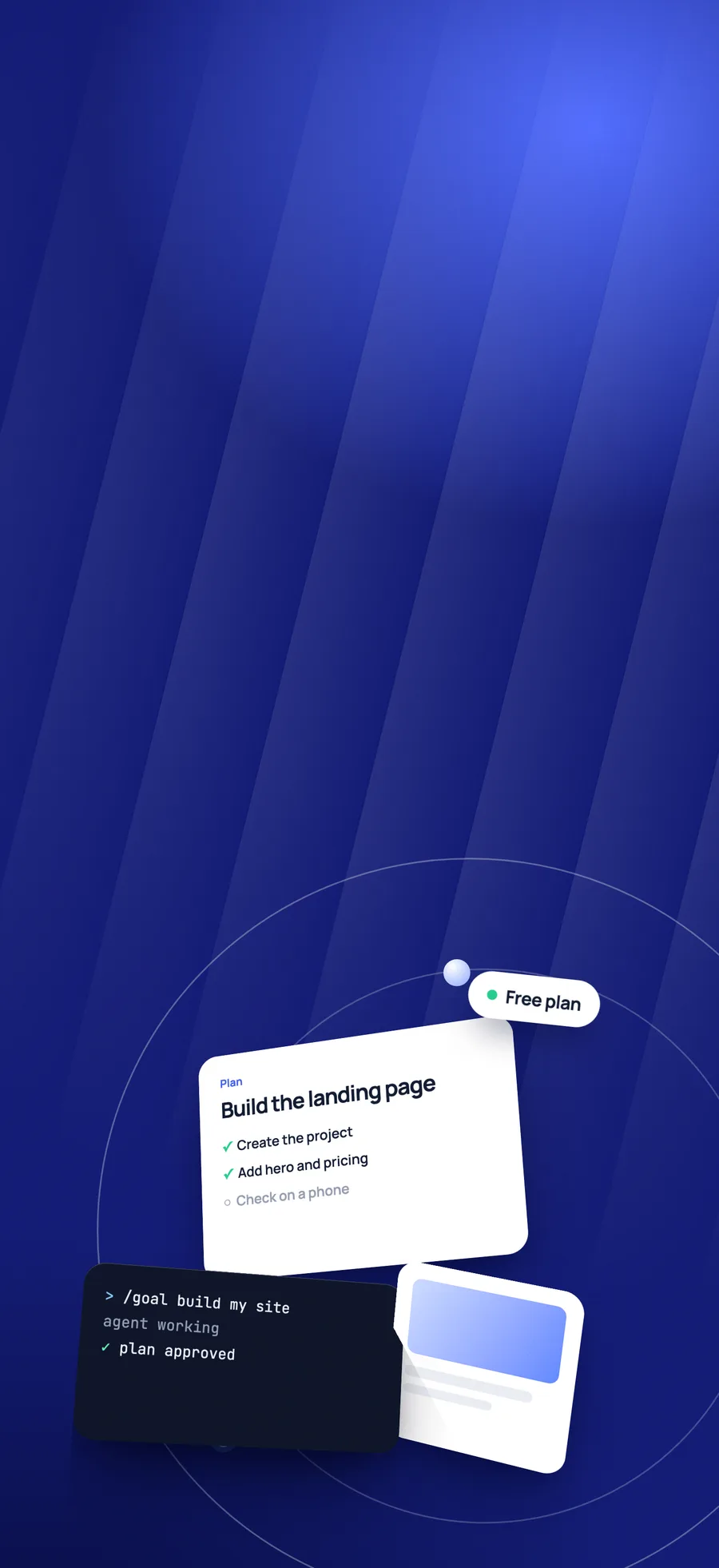
Key takeaways
- Antigravity has a free plan with weekly rate limits.
- Read the agent's plan before it changes your files.
- Use /goal to run a long brief, such as a kit prompt, to the end.
What Antigravity is
You give an agent a task, it plans the work, makes the changes and shows you what it did. You can use it through the Antigravity app, a full IDE, a command line tool called agy, or an extension for editors such as VS Code. It runs on macOS, Windows and Linux.
The individual plan was $0 a month with basic weekly rate limits on 2 November 2026. Google AI Pro and Ultra subscribers get higher limits, so a long build may need one of those.
The build, step by step
Create the project
Make an empty folder. In the app, click New Project, then Add Folder, select your folder and click Create.
Choose how the agent works
Local mode lets the agent work directly in your folder. New worktree mode gives it a separate Git worktree, which is safer once you have work to protect. Local mode is fine for a new, empty project.
Send one complete brief
Put the offer, the sections, the colours, the fonts and the motion in one message. A full kit prompt does this for you. Our landing page guide has a brief you can copy into any tool.
Read the plan first
The agent drafts a plan before it changes your files. This is the cheapest moment to catch a mistake, such as the wrong framework or a missing section.
Run it and look
Ask the agent to start the dev server, then open the page. Give one clear note at a time: name the section and say what is wrong.
Check it on a phone
Check the headline size, the button reach and that nothing scrolls sideways. Do this before you put the page online.
Two commands worth knowing
- /grill-me makes the agent interview you about your requirements before it starts. It is useful when your idea is still rough.
- /goal runs a task through to completion without stopping for input. It suits a long, complete brief such as a kit prompt.
What to watch for
- Invented proof. Remove any fake testimonial, logo or statistic before the page goes live.
- Rate limits. A large build can use up a free allowance, so break the job into parts if you hit a limit.
- The average look. A short request gets you an average page in any tool. See how to write a prompt that does not look AI-made.
Start from a finished design
Try it with a free kit. Every FyniteKits prompt has been checked in Antigravity. Open a free kit with a free account, paste its prompt into a new project, then swap in your own words. Browse free kits


